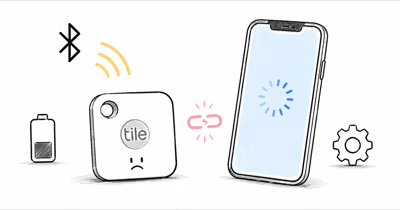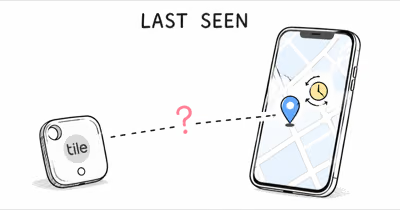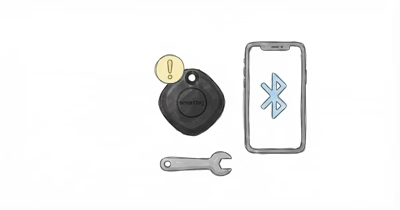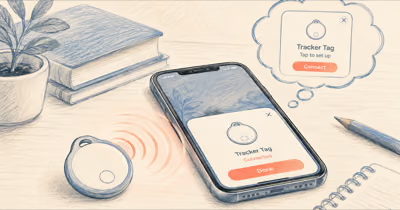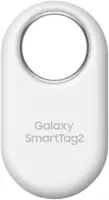
If your Samsung SmartTag 2 won't connect, confirm you're on a Galaxy phone signed in to a Samsung account, with Bluetooth and "Allow all the time" location on. Most failures are the wrong phone, missing permissions, a dead battery, or a tag linked to a previous owner.
A SmartTag 2 that refuses to register is confusing because SmartThings rarely explains the real cause. Samsung's own support team notes in its connection troubleshooting guide that network and discovery problems block most first-time setups.
The same short list of causes is behind most SmartTag and SmartTag 2 registration failures on Galaxy phones. Let's work through them so you can pin down which one is stopping you.
- The SmartTag 2 only works on a Galaxy phone with a Samsung account — it won’t pair with an iPhone or a non-Samsung Android phone at all.
- SmartThings needs “Allow all the time” location plus Bluetooth — “While using the app” alone breaks background finding and often blocks registration.
- A tag still linked to a previous owner won’t register, and a factory reset does not unlink it from their Samsung account.
- A dead CR2032 looks exactly like a connection failure — the tag never wakes, so setup silently fails.
- First-time registration can take more than one try in a busy wireless environment.
Why Won't My Samsung SmartTag 2 Connect?
The SmartTag 2 is not a universal Bluetooth tracker. It lives entirely inside Samsung's ecosystem, so the first thing to confirm is that your hardware and account even qualify. SmartThings Find runs only on Samsung Galaxy phones that support Find My Mobile, and you must be signed in to a Samsung account.
The most common "won't connect" report is simply the wrong phone. People try to set the tag up on an iPhone or a Pixel and assume the unit is broken. It isn't -- it just has nowhere to register. If you've confirmed you're on a Galaxy phone with a Samsung account, the remaining causes are permissions, battery, account locks, and stale app state.
Check Your Phone and Samsung Account First
Open the SmartThings app and confirm you're signed in. The SmartTag 2 registers to whatever Samsung account is active, so a signed-out app or a wrong account will stall the pairing pop-up before it ever appears.
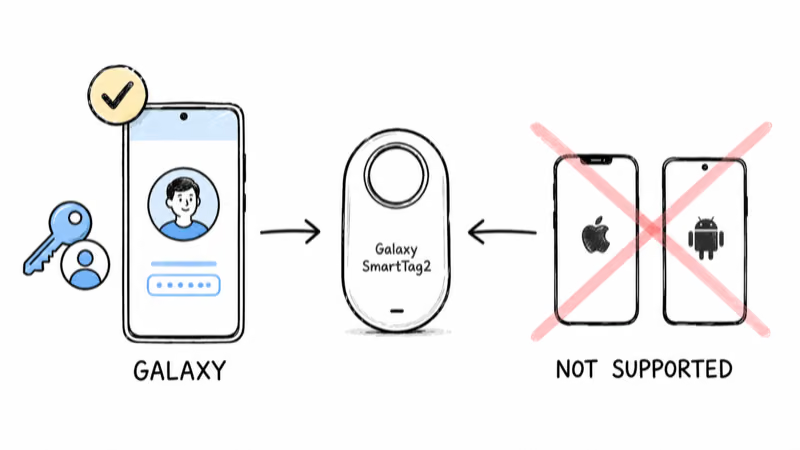
The SmartThings app requires a compatible Galaxy phone, so a very old budget model may not qualify. Update SmartThings to the latest version from the Galaxy Store or Play Store, since outdated builds can miss the new-device prompt.
If you bought the tracker secondhand, also confirm the seller's account isn't still attached -- we'll come back to that account lock below, because it's one of the most frustrating failure modes.
Turn On Bluetooth, UWB, and Location Permissions
The SmartTag 2 pairs over Bluetooth and uses ultra-wideband (UWB) for close-range Compass View on supported Galaxy models. If either radio is off, registration can hang. Pull down your quick settings and confirm **Bluetooth is on**, then keep the tag within a few feet of the phone during setup.
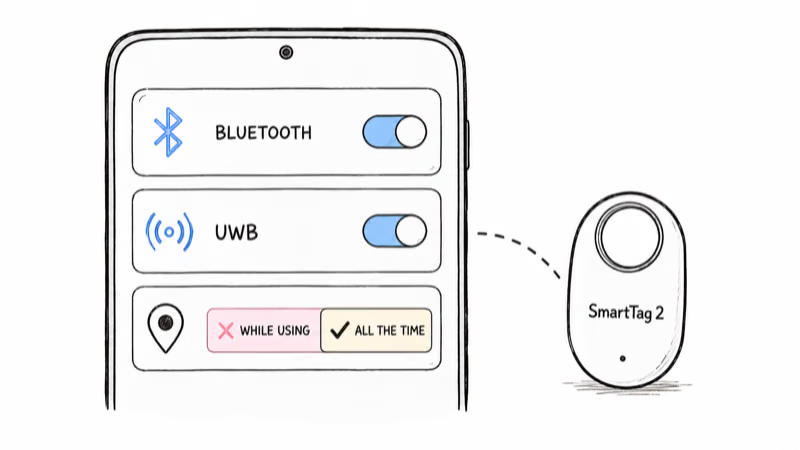
Location permission is the bigger trap. Samsung explicitly recommends setting SmartThings location to **"Allow all the time"** rather than "Only while using the app," so the tag can update in the background. On a Galaxy phone, go to Settings, Apps, SmartThings, Permissions, Location, and pick the all-the-time option.
With location set to "While using," a tag can appear briefly and then drop -- exactly the symptom most people mistake for a hardware defect. Switching the permission to Allow all the time often clears it.
Is the SmartTag 2 Still Linked to Another Account?
This is the cause that traps secondhand buyers. A SmartTag 2 stays registered to the original owner's Samsung account, and Samsung's support forums confirm that **a factory reset does not unlink it** for security reasons. So a tag that beeps, resets, and still refuses to register is usually account-locked.
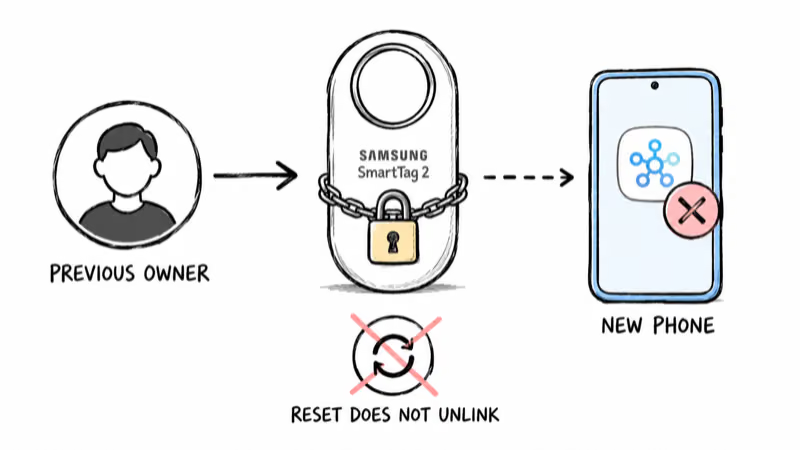
The only clean fix is on the previous owner's side: they open SmartThings, find the tag, and delete or transfer it from their account. Once it's released, you can register it normally on your Galaxy phone. Samsung's disconnected-tracker guide explains why a locked or unpowered tag never appears in the app.
If you can't reach the seller, contact Samsung support with proof of purchase. There's no way to claim a linked tag from your side alone -- the lock is intentional, designed to discourage theft, but it catches honest buyers too. Before buying used, it's worth reading our AirTag vs SmartTag comparison to be sure the platform even fits your phone.
Rule Out a Dead CR2032 Battery
A dead coin cell mimics a connection failure perfectly: the tag never wakes, so SmartThings never sees it. The SmartTag 2 uses a single user-replaceable **CR2032** cell with a long published runtime, but a unit that sat on a shelf, or a cheap aftermarket cell, can arrive nearly flat.
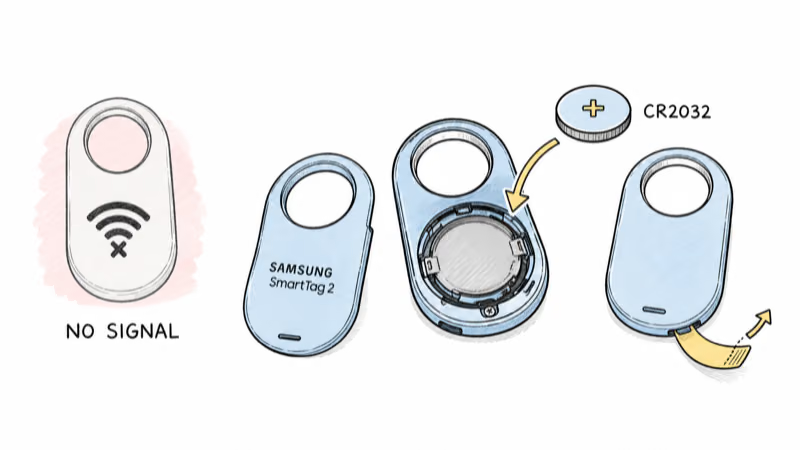
Pop the back cover, swap in a fresh name-brand CR2032, and make sure the plus side faces up. New tags often ship with a plastic pull-tab under the battery -- if you skipped removing it, the cell is disconnected and nothing will register.
After a fresh battery, press the tag's button once; a healthy unit chimes. No chime usually means the battery is seated wrong or the contacts need a wipe. Samsung's official SmartTag2 announcement states that the tag is rated for 500 days in Normal Mode and up to 700 days in Power Saving Mode, so a fresh CR2032 is the right first power test. Our roundup of the best Bluetooth trackers breaks down battery life across brands.
Register, Reset, and Re-Pair the Right Way
If the basics check out, restart the registration cleanly. Force-close SmartThings, reopen it, and bring the tag close. First-time registration can take more than one attempt in a crowded wireless environment, so don't give up after one failed prompt.
To factory reset a stubborn tag, press and hold its button for **7 to 10 seconds** until you hear two sets of beeps -- the first confirms it entered reset mode, the second confirms it finished. Release after the second set, then try registering again.
Remember the limit from the section above: this reset clears the tag's local state but does not strip it from a previous Samsung account. If your tag was always yours and a reset still won't register, move on to the app-cache fix below.
Update SmartThings and Clear the App Cache
Stale app data causes a surprising share of "stuck" registrations. Samsung's SmartThings app support page recommends clearing the cache: go to **Settings, Apps, SmartThings, Storage, and tap Clear Cache**, then relaunch and retry.
Also confirm the app is current. An outdated SmartThings build can miss the SmartTag 2 entirely, since support for newer tags arrives through updates. Pair the cache clear with a phone restart to reset the Bluetooth stack when a tag pairs elsewhere but not on your main phone.
If you've worked through every step and the tag still won't appear, it's most likely account-locked or has a failed cell. For a deeper look at how Samsung's tracker stacks up before you replace it, see our Chipolo vs SmartTag breakdown and our AirTag 2 vs SmartTag 2 vs Moto Tag 2 comparison.
Bottom Line
Most SmartTag 2 connection problems trace back to four things: the wrong phone or signed-out account, missing "all the time" location permission, a dead or unremoved CR2032, or a tag still locked to a previous owner. Work through them in that order before treating the unit as defective.
If the tag is truly account-locked and you can't reach the seller, Samsung support with proof of purchase is your only path. Everything else is a permission, a battery, or a stale cache away from working.
If your tag pairs fine but acts up later, our guide to a Samsung Galaxy SmartTag not working covers the wider set of post-setup failures.
FAQ
Why won't my Samsung SmartTag 2 connect?
The usual causes are using a non-Galaxy phone, being signed out of your Samsung account, missing "Allow all the time" location permission, a dead CR2032 battery, or a tag still linked to a previous owner. Confirm you're on a Galaxy phone with SmartThings, enable Bluetooth and location, then bring the tag within a few feet before assuming it's broken.
Does the SmartTag 2 work on an iPhone or non-Samsung Android?
No. The SmartTag 2 only works on Samsung Galaxy phones running Android 9.0 or later with the SmartThings app and a Samsung account. It does not pair with iPhones or non-Samsung Android phones, so trying to set it up on one of those will always fail.
How do I register a used SmartTag 2 linked to another account?
The previous owner has to open SmartThings, find the tag, and delete or transfer it from their Samsung account. A factory reset does not unlink it for security reasons. If you can't reach the seller, contact Samsung support with proof of purchase, since there's no way to claim a locked tag from your side alone.
How do I reset a SmartTag 2 that won't connect?
Press and hold the tag's button for about 7 to 10 seconds until you hear two sets of beeps. The first set means it entered reset mode and the second confirms the reset finished. Release after the second set, then try registering again in SmartThings.
Does the battery affect connecting?
Yes. A dead CR2032 keeps the tag from waking, so SmartThings never sees it, which looks identical to a connection failure. Swap in a fresh name-brand CR2032 with the plus side up, and make sure you removed any plastic pull-tab under the battery on a new unit.
Why does registration keep failing on the first try?
First-time registration can take more than one attempt in a crowded wireless environment. Force-close SmartThings, keep the tag within a few feet, clear the app cache, and retry. If it still fails after several tries, check the battery and whether the tag is account-locked.
What location permission does SmartThings need?
Set SmartThings location to "Allow all the time," not "Only while using the app." The all-the-time setting lets the tag update its location in the background, and using the weaker option often makes the tag appear briefly and then drop during setup.