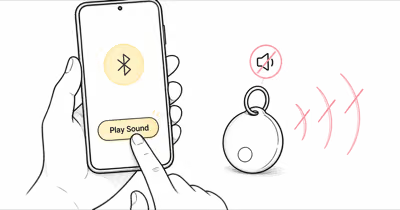
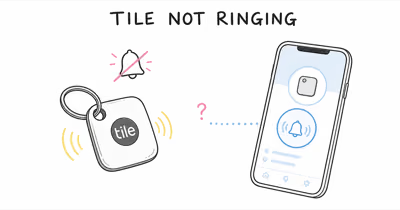
A Tile that keeps beeping is almost always signaling low battery -- the most common cause by far. Other triggers include a sync confirmation beep when connecting to your phone, a separation alert if you've enabled that feature, or someone accidentally pressing "Find" in the Tile app. Less common: extreme temperatures or a software glitch. The fix depends on which model you have: Tile Pro owners can replace the CR2032 battery; Tile Mate and Slim owners can't -- persistent beeping on those models often means the device is near end of life.
A Tile tracker that won't stop beeping is one of the more frustrating tracker problems, especially if it's attached to your keys at 2am. Each beeping pattern has a specific cause, and most are quick to triage. Here's every cause, what it sounds like, and how to stop it.
- Low battery is the first thing to check — periodic beeps are the standard low-battery warning pattern.
- Tile Pro uses a replaceable CR2032 — Tile Mate and Slim have sealed 3-year batteries that can’t be replaced.
- Three quick beeps when opening the app is a normal sync confirmation — this means the Bluetooth connection was established successfully, not an error.
- Separation Alerts can trigger unwanted beeping — disable them in Settings if you don’t need departure notifications for that specific Tile.
- Persistent beeping on a Tile Mate or Slim older than 2.5 years means end of life — the sealed battery is depleted and the entire unit needs to be replaced.
The 5 Main Reasons Your Tile Keeps Beeping
Tile trackers beep for five distinct reasons. Low battery is the first one to rule out, but the others are worth checking before you swap the battery or throw the device away.
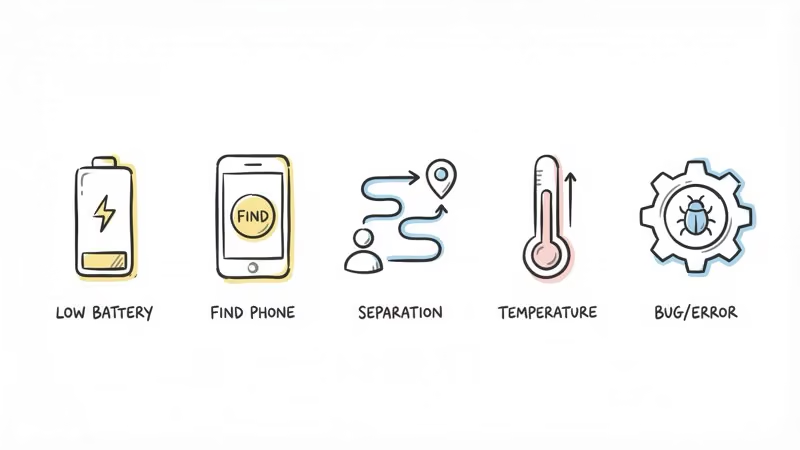
Low Battery (Most Common)
The Tile Pro uses a replaceable CR2032 coin cell. Tile's official support page states that low-battery beeps increase in frequency as the cell drops below 2.5V. As a CR2032 nears that threshold, the warning chirps grow steadily more frequent until you swap in a fresh cell. If your Tile beeps on a steady periodic cadence, low battery should be your first check.
The Tile Mate (2024) and Tile Slim use non-replaceable sealed batteries rated for 3 years. These models don't beep for low battery in the same way; persistent unexplained beeping on a Tile Mate or Slim that's 2–3 years old usually means the battery is at end of life and the unit needs to be replaced, not fixed.
Battery life by model:
| Model | Battery Type | Life | Replaceable? |
|---|---|---|---|
| Tile Pro (2024) | CR2032 coin cell | Replace periodically | ✅ Yes |
| Tile Mate (2024) | Sealed built-in | 3 years | ❌ No |
| Tile Slim | Sealed built-in | 3 years | ❌ No |
| Tile Sticker | Sealed built-in | 3 years | ❌ No |
2. Someone Pressed "Find" in the Tile App
When you or anyone with access to your Tile account taps the "Find" button in the app, the Tile rings until you tap "Stop." If your Tile is suddenly beeping with no obvious cause, check your phone first; another family member may have accidentally triggered it. The ring is intentionally loud (the Tile Pro is rated at 110dB) and won't stop on its own until you cancel it in the app or press the Tile's button directly.
If the problem is specifically a silent Tile, use our Tile ring alert troubleshooting before resetting the app.
3. Separation Alert
If you've enabled Separation Alerts in the Tile app, your phone will notify you when your Tile moves out of Bluetooth range, which is useful for preventing you from leaving your keys behind at a restaurant. However, some users find the alerts trigger too often in places with frequent Bluetooth interference.
Tom's Guide's Tile Pro review found that separation alerts can fire 2-3 times per hour in crowded areas. Check Settings → your Tile → Notifications in the Tile app to see if Separation Alerts are turned on. Disabling this stops the alert-based beeping entirely.
In a busy home or office full of Bluetooth devices, those false separation alerts can stack up to a dozen or more in a single day, which is usually what pushes owners to turn the feature off entirely.
4. Temperature Extremes
Tile trackers are rated for -20°C to 60°C (-4°F to 140°F). According to Energizer's CR2032 datasheet, lithium coin cells lose up to 40% capacity below 0°C, which can trigger low-battery beeps even on a relatively fresh cell. Move the tracker to a room-temperature environment before you assume the battery or speaker has failed.
5. Software Glitch or Sync Confirmation
Three successive beeps when you open the Tile app or bring the tracker within Bluetooth range is a normal sync confirmation; it's telling you the connection was established. This isn't a problem. Persistent or random beeping that doesn't match any of the above is more likely a software issue, fixable with a factory reset.
How Do You Stop Your Tile from Beeping?
Work through these steps in order. Most cases are resolved at step 1 or 2.
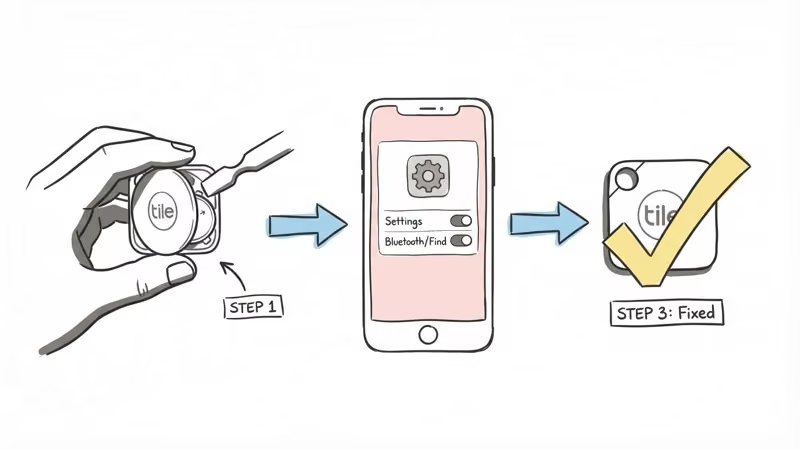
- Check the Tile app battery indicator. Open the Tile app, tap your device, and check the battery level. If it shows low, replace the battery (Tile Pro) or replace the unit (Tile Mate/Slim).
- Cancel any active "Find" ring. In the Tile app, check if there's an active Find session running. Tap "Stop" to cancel it, or press the Tile button once to stop the ring directly.
- Turn off Separation Alerts. Go to app Settings → your Tile → toggle off Separation Alerts if you don't actively need them.
- Move your Tile to a room-temperature location. If the Tile was in a hot car or cold environment, let it normalize before judging the battery.
- Perform a factory reset. For software glitches: press and hold the Tile button for 10–15 seconds until you hear a series of beeps indicating reset. This clears the connection and software state.
- Re-pair with the Tile app. After resetting, open the Tile app, tap "+" to add a new Tile, and follow the pairing steps. This re-establishes a clean connection.
- Contact Tile support. If none of the above works, the hardware may be defective. Tile offers a 1-year warranty -- contact Tile support for replacement options.
What Does Each Tile Beeping Pattern Mean?
Not all Tile beeps mean the same thing. Each pattern points to a different cause:
| Beep Pattern | What It Means | Action |
|---|---|---|
| 3 beeps (short) | Synced with phone / connection confirmed | Normal -- no action needed |
| Continuous ringing | Active "Find" command from app | Tap "Stop" in app or press Tile button |
| Periodic beeps on a steady cadence | Low battery warning | Replace CR2032 (Pro) or replace unit (Mate/Slim) |
| Random single beeps | Separation alert or Bluetooth reconnect | Check Separation Alert settings |
| Erratic / irregular beeps | Temperature issue or hardware fault | Move to room temp, then factory reset |
When Does Beeping Mean It's Time to Replace Your Tile
Three situations where fixing isn't the right answer:
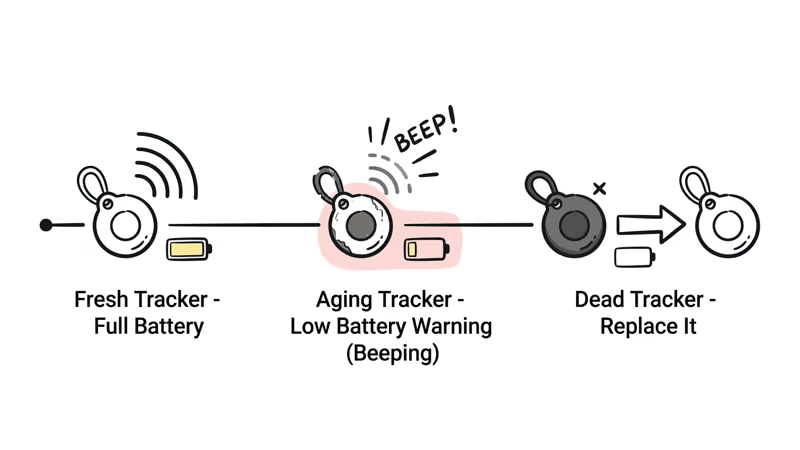
- Tile Mate, Slim, or Sticker older than 2.5–3 years: The sealed batteries in these models aren't replaceable. Persistent beeping near the end of the rated 3-year period means the battery is depleted and the unit needs to be replaced -- not reset or repaired.
- Tile Pro that still beeps after a new CR2032: If the beeping continues after a confirmed good battery replacement, the speaker or internal circuit is likely defective. Hardware faults in a tracker this size aren't repairable -- contact Tile for a warranty replacement.
- Tile that beeps intermittently for months with no known cause: Some older Tile units develop intermittent speaker activation from component aging. A factory reset may buy time, but replacement is the permanent fix.
Considering a Switch? Best Tile Alternatives in 2026
If your Tile is at end of life or you've been frustrated with recurring issues, it's worth considering a fresh start with a different tracker. The landscape has changed significantly since Tile was acquired by Life360 in 2021, and newer options offer larger tracking networks and no battery headaches. Newer trackers ride on the same Bluetooth network the Bluetooth SIG maintains.
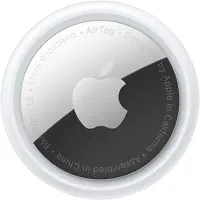
If you have an iPhone: The Apple AirTag 2 ($29) uses the Apple Find My network (over a billion devices), which dwarfs Tile's Life360 network in most countries. Precision Finding with the U2 UWB chip lets you go to within centimeters of a lost item, something no Tile model can do.
The battery is a standard CR2032, the same replaceable battery format as Tile Pro. See our full AirTag vs Tile comparison for a full breakdown of how they stack up.
Need cross-platform (iPhone + Android)? Tile Pro still makes sense if you need one tracker that works equally well on both platforms, but the Chipolo Pop ($29) is worth considering: it supports both Apple Find My and Google Find Hub with no subscription. Our best Bluetooth tracker roundup covers all the main options by platform.
If you're on Android only: The Samsung Galaxy SmartTag 2 is the stronger option for Samsung Galaxy users, with a 700-day battery, meaning you'll never deal with low-battery beeping alerts for almost two years. Our Samsung SmartTag vs Tile comparison covers the full difference.
For a broader look at Tile-compatible and Tile-replacing options, see our Tile alternatives guide and the Tile tracker review.
The Bottom Line
If your Tile keeps beeping, check the battery status in the Tile app first because low battery is the fastest cause to confirm. Tile Pro owners can swap in a new CR2032; Tile Mate and Slim owners with a unit near the end of its rated life should plan on replacing the tracker entirely.
For everything else, work through the step-by-step fix list above. If the tracker also drops its connection or stops updating its location, our guide to fixing a Tile that won't connect covers the full reset and re-pair sequence. And if you're tired of sealed-battery limitations, consider switching to an AirTag 2 or Chipolo Pop for a longer-lasting, more reliable experience.
Frequently Asked Questions
Why does my Tile keep beeping every 30 seconds?
Steady periodic beeping is the low-battery alert pattern. For Tile Pro, replace the CR2032 battery under the back cover. For Tile Mate or Slim, the battery is sealed and non-replaceable; if the tracker is near the end of its rated life, it needs to be replaced. Check the battery status in the Tile app to confirm before taking action.
My Tile beeps randomly at night with no one near it -- why?
Overnight random beeping is usually one of three things: a scheduled Separation Alert firing when Bluetooth range drops (your phone moved to another room), a very low battery producing irregular warning beeps, or a software glitch. Disable Separation Alerts in the app first. If the beeping continues, replace the battery or perform a factory reset.
Can I turn off Tile beeping completely?
You can't disable the speaker entirely -- it's a core function of the tracker. You can turn off Separation Alerts to eliminate that specific cause, and you can stop an active "Find" ring by pressing the Tile button or tapping "Stop" in the app. The low-battery warning beeps can only be stopped by replacing the battery.
Why won't my Tile stop beeping after I replaced the battery?
Two possibilities: the new battery is installed incorrectly (check the polarity -- the "+" side faces up), or there's a hardware fault with the speaker circuit. Try reinserting the battery and performing a factory reset. If beeping continues with a confirmed good battery, the unit is likely defective; contact Tile support for warranty replacement.
Does cold weather make Tile beep?
Yes. Tile trackers are rated down to -20°C (-4°F), but prolonged exposure to extreme cold in ski lockers or unheated vehicles in winter can cause erratic behavior including unexpected beeping. Bring the tracker back to room temperature before deciding the battery or speaker has failed. If you regularly use a tracker in cold conditions, see our guide on AirTag ski mounts.
Why does my Tile beep 3 times when I open the app?
Three quick beeps when you open the Tile app or walk into Bluetooth range is a normal sync confirmation; the tracker is telling you it successfully connected to your phone. This isn't a problem and doesn't require any action. If the three-beep sync happens every few minutes, your Tile may be losing and regaining Bluetooth connection repeatedly, which points to a range or interference issue.
Tile beeps 3 times then stops -- is it broken?
No, three beeps and stop is the standard sync confirmation. It's working correctly. If you're hearing it constantly throughout the day, your phone's Bluetooth connection to the Tile is unstable; try moving the Tile closer to your phone, confirm the Tile app is running in the background, and toggle Bluetooth off and on to re-establish a clean connection.
My Tile Mate is beeping but the battery isn't replaceable -- what do I do?
If your Tile Mate is within its 3-year rated battery life and is beeping persistently for no obvious reason, start with a factory reset (hold the button for 10–15 seconds). If the beeping continues and the unit is under 1 year old, it may be defective; contact Tile support. If the Mate is 2.5–3 years old, the built-in battery is likely near end of life and the tracker needs to be replaced. Check our best Bluetooth tracker guide for the best replacements.