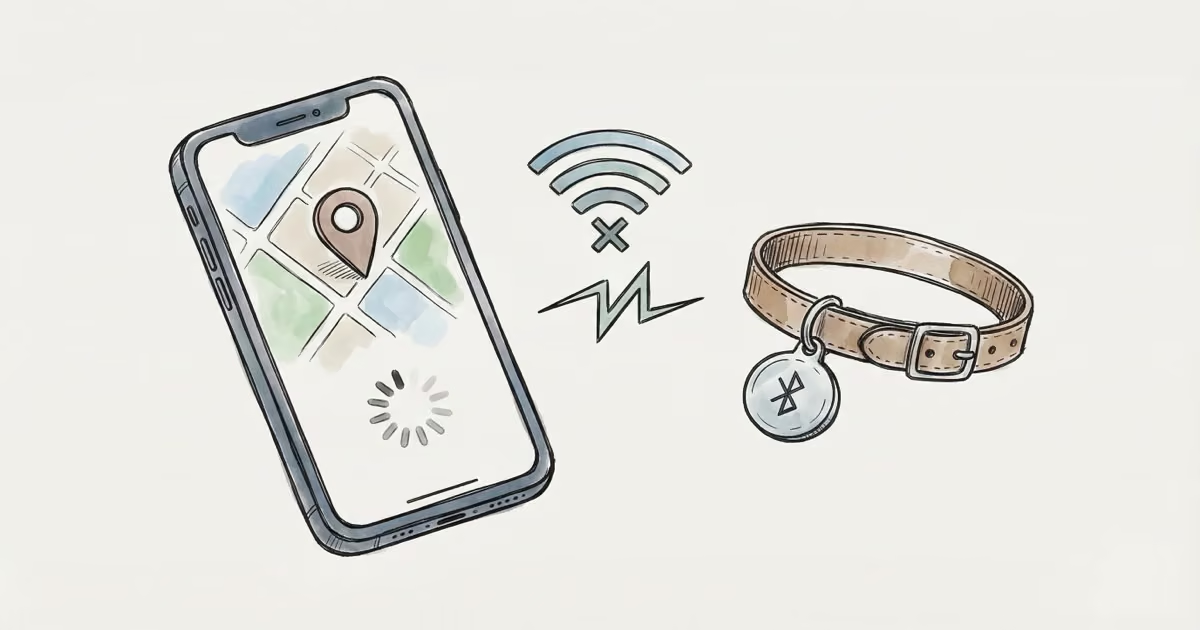
The Yip Smart Tag is a Bluetooth dog tag that tracks your pup’s location through your smartphone. When it works, it’s straightforward and reliable. When it stops updating, though, you’re left staring at a stale location while your dog wanders the yard.
We’ve walked dozens of Yip owners through this exact problem. The fix is almost always one of eight things, and you can run through all of them in about 15 minutes.
Key Takeaways
- Low battery (under 20%) is the most overlooked cause of Yip Smart Tag location failures
- The Yip tag's Bluetooth range maxes out at about 400 feet -- walls and interference cut that significantly
- Re-pairing the tag after resetting network settings fixes most persistent connectivity issues
- Toggling Airplane mode on for 30 seconds then off again resets all wireless connections at once
- If nothing works, contact Yip support -- hardware damage or firmware corruption may require replacement
Why Your Yip Smart Tag May Not Be Updating Location
Understanding the root cause helps you skip straight to the right fix. Here are the usual suspects.
Weak or absent Bluetooth signal
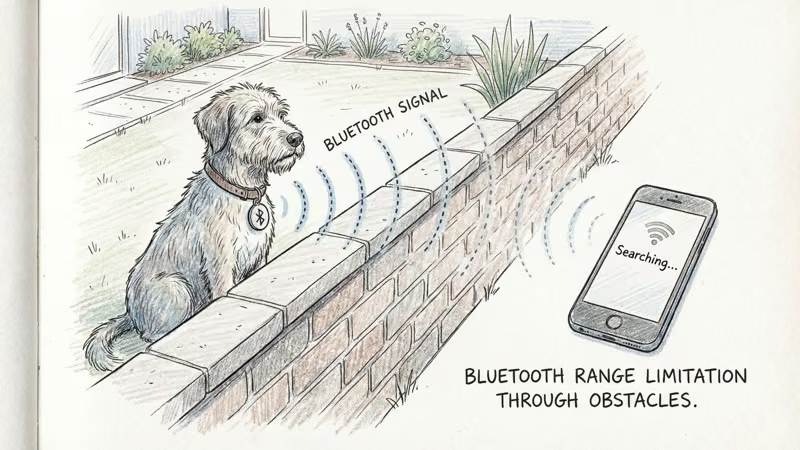
The Yip Smart Tag connects to your phone via Bluetooth with a maximum range of about 400 feet in open air. Thick walls, concrete, metal structures, and even dense foliage cut that range dramatically. If your dog is on the far side of the house or in the backyard behind a brick wall, the tag may lose connection entirely.
Low battery
When the Yip tag’s battery drops below 20%, it starts conserving power by reducing Bluetooth broadcast frequency. Below 10%, it may stop transmitting altogether. The tag uses a CR2032 coin cell that lasts roughly a year, but heavy use or extreme temperatures can shorten that.
Phone settings blocking the connection
The Yip app needs three permissions to work properly: Bluetooth access, location services set to “Always Allow,” and background app refresh enabled. If any of these got toggled off during a software update or by accident, the tag can’t communicate.
Physical damage
Water exposure, drops onto hard surfaces, or collar-related wear can damage the Yip tag’s internal antenna or Bluetooth radio. The tag has IPX7 water resistance, which handles rain and splashes, but submersion or prolonged soaking can cause problems. For a deeper look at water resistance ratings on trackers, see our guide on AirTag water resistance.
App or firmware issues
Outdated versions of the Yip app or the tag’s own firmware can introduce bugs that prevent location updates. This is especially common after major iOS or Android updates that change how Bluetooth permissions work.
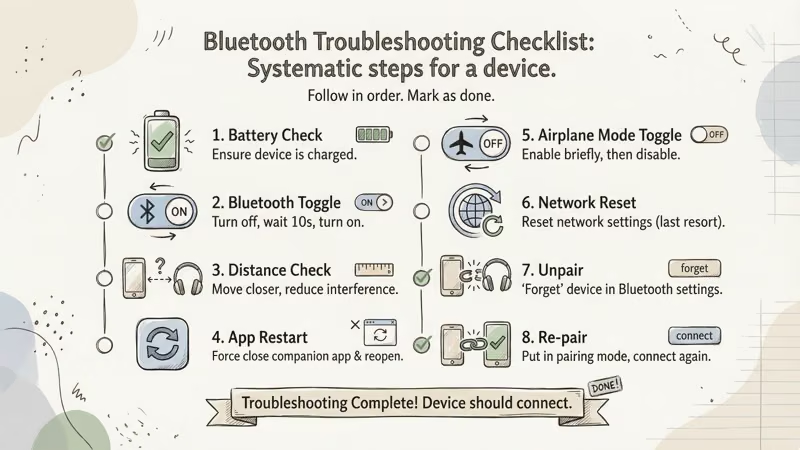
8 Troubleshooting Steps to Fix Location Updates
Work through these in order. Most people find their fix within the first four steps.
1. Check the battery level
Open the Yip app and tap the tag icon in the upper left corner. If the battery is under 20%, that’s your problem. Replace the CR2032 cell with a fresh one. Use a reputable brand like Energizer or Panasonic.
2. Confirm Bluetooth is enabled
Go to your phone’s Settings and verify Bluetooth is toggled on. Then check that the Yip app specifically has Bluetooth permission. On iPhone, this is under Settings > Privacy > Bluetooth. On Android, check Settings > Apps > Yip > Permissions.
3. Set location permissions to “Always Allow”
The Yip app needs continuous location access to track in the background. On iPhone: Settings > Privacy > Location Services > Yip > Always. On Android: Settings > Apps > Yip > Permissions > Location > Allow all the time.
4. Reset network settings
This clears any corrupted Bluetooth pairings or network configurations. On iPhone: Settings > General > Transfer or Reset iPhone > Reset > Reset Network Settings. On Android: Settings > System > Reset Options > Reset Wi-Fi, Mobile & Bluetooth.
Your phone will restart. You’ll need to re-enter Wi-Fi passwords afterward.
5. Unpair and re-pair the tag
After the network reset, open the Yip app, go to your tag’s profile, and tap Unpair Tag. Then follow the on-screen setup to pair it again. This forces a clean Bluetooth handshake and often resolves persistent connection drops.
6. Update the Yip app and your phone OS
Check your app store for Yip app updates. Also install any pending operating system updates on your phone. Compatibility issues between old app versions and new OS releases are a common culprit for Bluetooth tracker connection problems.
7. Toggle Airplane mode
Turn on Airplane mode, wait 30 seconds, then turn it off. This resets all wireless radios — Bluetooth, Wi-Fi, and cellular — without requiring a full phone restart. It’s a quick reset that clears many software-level connection glitches.
8. Contact Yip support
If you’ve tried everything above and the tag still won’t update, the problem is likely hardware-related. Reach out to Yip’s support team:
- Phone/Text: 1-844-932-1735
- Email: info@yiptracker.com
They can run remote diagnostics and arrange repair or replacement under the 1-year warranty if the tag is defective.
Resetting and Repairing Your Yip Smart Tag
When basic troubleshooting fails, these deeper interventions can help:
- Factory reset — Erases all saved data and restores default settings. Useful when firmware gets corrupted. Check the Yip support page for model-specific reset instructions.
- Firmware update — Connect the tag to the Yip app and install any pending updates. Firmware patches frequently address connectivity bugs.
- Battery replacement — Swap in a fresh CR2032. A depleted battery can mimic connectivity issues because the tag lacks power to broadcast.
- Warranty service — For water damage or internal hardware failure, Yip’s limited warranty may cover free repair or replacement.
Preventing Future Connectivity Issues
A few habits will keep your Yip tag connected consistently:
- Check the battery level monthly through the app, and replace it before it drops below 20%
- Keep Bluetooth and location permissions enabled at all times for the Yip app
- Update both the app and your phone’s OS promptly when new versions release
- Stay within reasonable Bluetooth range — thick walls and long distances kill the signal
- If your dog spends time outdoors in rain or near water, inspect the tag periodically for moisture damage
For dogs that frequently roam beyond Bluetooth range, a dedicated GPS pet tracker with cellular connectivity may be a better fit. GPS trackers like Tractive or FitBark provide real-time tracking over miles, not feet.
What to Do If Your Yip Smart Tag Is Beyond Repair
If the tag is dead and no amount of troubleshooting brings it back, you have options:
- Buy a replacement Yip Smart Tag — If you liked the original, a new one is the fastest solution
- Switch to an AirTag — Apple’s Find My network covers over a billion devices, giving you far wider tracking coverage. See our Yip Smart Tag vs AirTag comparison for the full breakdown
- Try a GPS dog collar — Trackers like Tractive GPS provide real-time location over cellular networks, with no Bluetooth range limits
- Microchip your dog — Not real-time tracking, but a permanent ID that helps shelters and vets reunite lost dogs with owners
Bottom Line
Most Yip Smart Tag connectivity issues come down to low battery, Bluetooth settings, or a stale pairing that needs to be refreshed. Run through the 8 steps above before assuming the tag is broken. If you’ve exhausted every fix and the tag still won’t connect, Yip’s support team is responsive and can arrange a warranty replacement when the hardware is at fault.
FAQ
Why is my Yip Smart Tag not updating my dog's location?
The most common causes are low battery, Bluetooth being disabled on your phone, or your dog being out of the tag's 400-foot range. Check the battery level in the Yip app first, then verify Bluetooth and location permissions are enabled.
How far can the Yip Smart Tag track?
Up to about 400 feet in open air via Bluetooth. Walls, furniture, and electronic interference reduce that range significantly. The tag does not have GPS, so it cannot track beyond Bluetooth distance without other Yip app users nearby.
Does the Yip Smart Tag have GPS?
No. It uses Bluetooth only. Location updates depend on your phone being within range, or on other Yip users' phones detecting the tag through community tracking. For true GPS tracking, consider a dedicated GPS pet tracker.
How do I reset my Yip Smart Tag?
Open the Yip app, go to the tag's profile, and tap Unpair Tag. Then remove the battery for 30 seconds, reinsert it, and re-pair the tag through the app. For a full factory reset, check the Yip support website for your specific model's instructions.
What battery does the Yip Smart Tag use?
A CR2032 3V lithium coin cell. It lasts about one year under normal use. Replace it when the app shows battery below 20% to avoid connectivity issues caused by insufficient power.
Is the Yip Smart Tag waterproof?
It has an IPX7 water resistance rating, which means it handles rain, splashes, and brief submersion up to 1 meter for 30 minutes. Prolonged water exposure or deep submersion can damage the internal electronics and cause connectivity problems.
Can I use a Yip Smart Tag with an iPhone?
Yes. The Yip Smart Tag works with both iPhone (via the Yip app and Apple Find My) and Samsung Galaxy devices (via SmartThings). It is compatible with iOS 14.5 and later.